> For the complete documentation index, see [llms.txt](https://emporium-unlocks.gitbook.io/emporium-unlocks-services/llms.txt). Markdown versions of documentation pages are available by appending `.md` to page URLs; this page is available as [Markdown](https://emporium-unlocks.gitbook.io/emporium-unlocks-services/individual-guides/virtualization.md).
# Virtualization
This page will help you to turn on virtualization in BIOS.
### Turn on Virtualization in BIOS
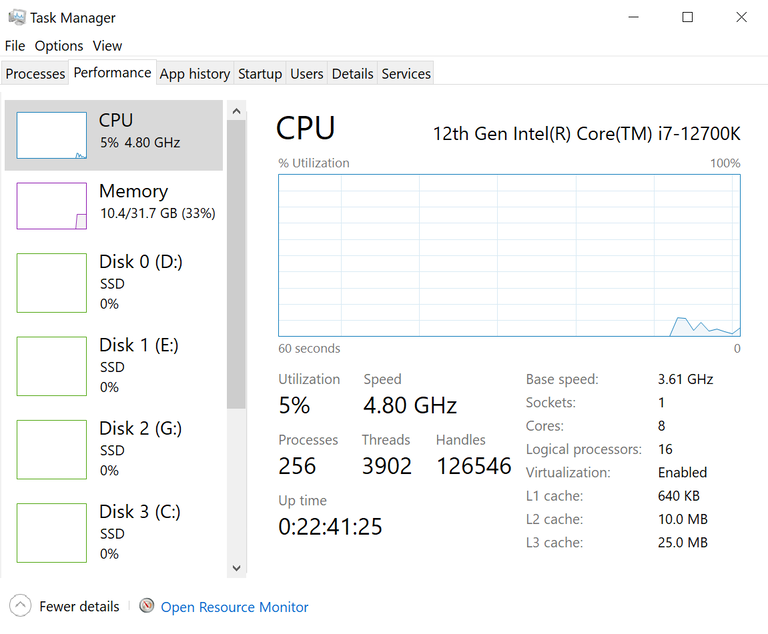
* Begin by opening Task Manager and navigating to the Performance tab.
* If the Virtualization status is listed as "disabled," proceed to the next step. If it's already enabled, you can skip to the next section.
## Virtualization for Intel Users:
Once in your BIOS settings, head over to the advanced tab and select CPU configuration.
From there, go to Intel Virtualization Technology, and enabled it. Save changes and exit.
**Note:** Your BIOS settings may vary depending on your computer's manufacturer.
## Virtualization for AMD Users:
Once in your BIOS settings, head over to the advanced tab and select CPU configuration.
From there, go to SVM Mode, and enabled it. Save changes and exit.
**Note:** Your BIOS settings may vary depending on your computer's manufacturer.
.gif?alt=media&token=f12dae72-d6c6-477c-9d0f-9fc86f02d7dc)
.gif?alt=media&token=e5918744-5368-4bb5-b41a-c39ae89c7840)